Windows RustDesk setup instructions
Use the Windows EXE installer. It installs RustDesk, configures help.vserv.online, and registers the computer in the admin portal.
Step by step
1Download the Windows EXE
Click Windows EXE Download here.
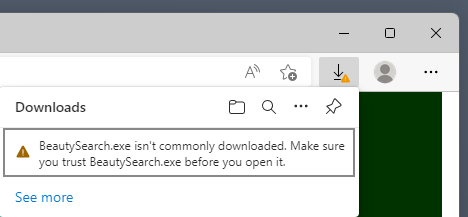
Screenshot shown in English — it reflects the real operating system interface, which stays in English regardless of page language.
2In Edge, choose Keep anyway
If Edge opens a SmartScreen warning, use this path:
- Open the Edge download panel.
- Click the three dots or warning beside the download.
- Choose Keep.
- Click Show more.
- Choose Keep anyway.
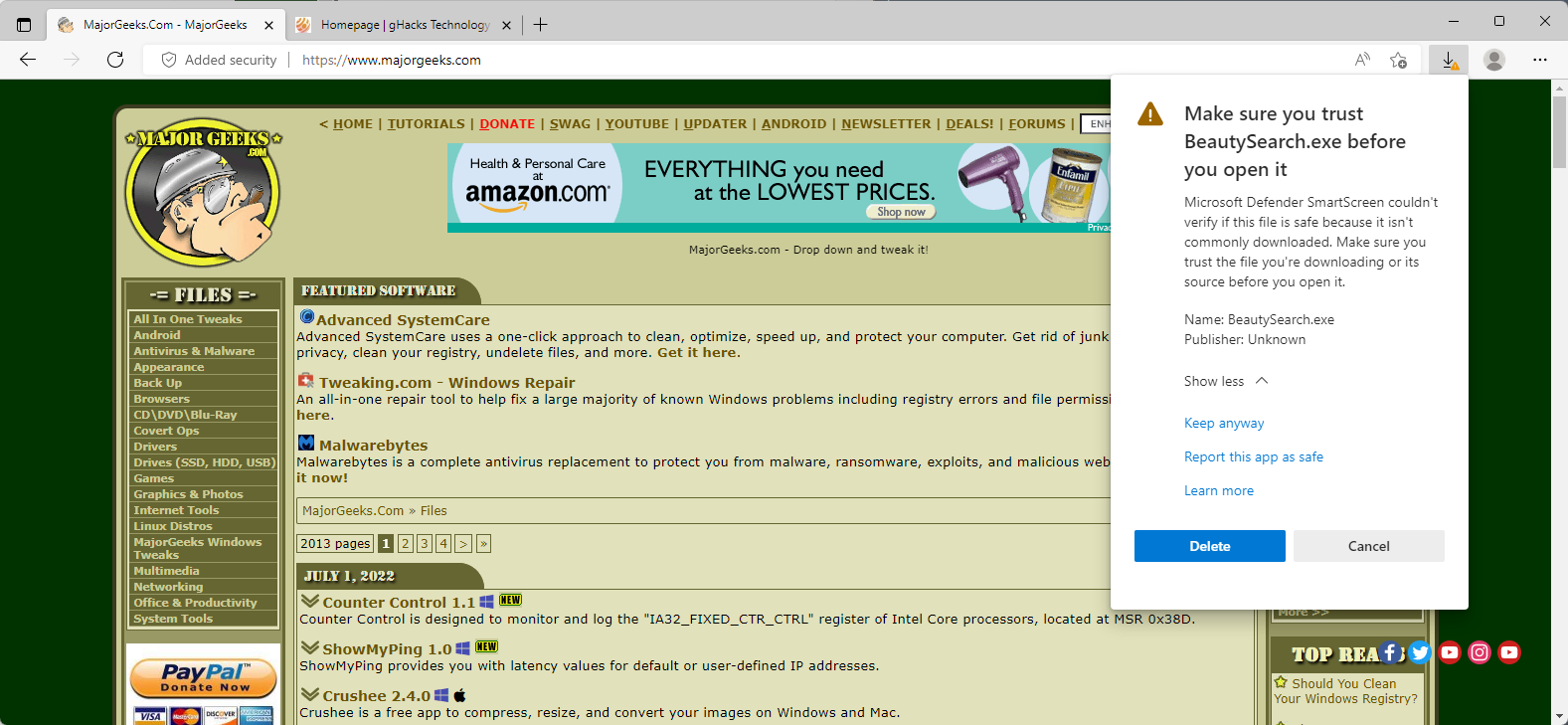
Screenshot shown in English — it reflects the real operating system interface, which stays in English regardless of page language.
3Run the installer
Open your Downloads folder and double-click:
RustDesk-help.vserv.online-windows-installer.exe
If Windows asks for permission, click Yes.
RustDesk-help.vserv.online-windows-installer.exe
It should be in Downloads unless you picked another folder.
4Unknown publisher warning
You may see a Windows SmartScreen or User Account Control warning saying Unknown publisher.
If you trust this Help.VserV.online installer, choose More info → Run anyway, or click Yes on the User Account Control prompt.
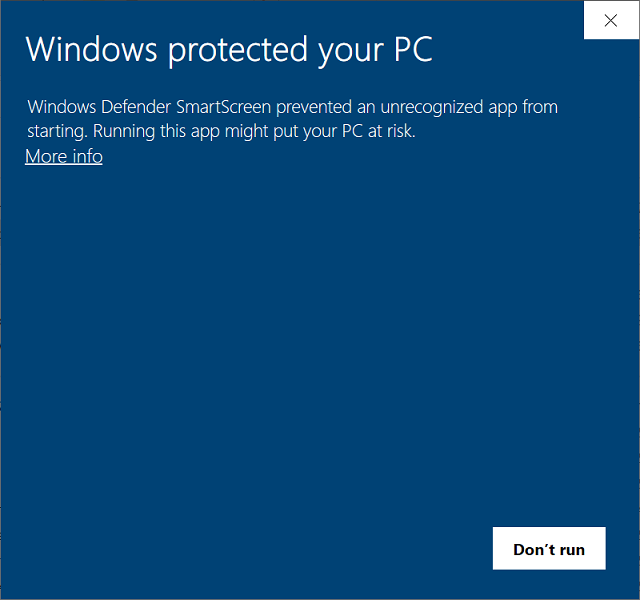
Screenshot shown in English — it reflects the real operating system interface, which stays in English regardless of page language.
5Click Run anyway
After clicking More info, Windows shows the Run anyway button. Click it to continue.
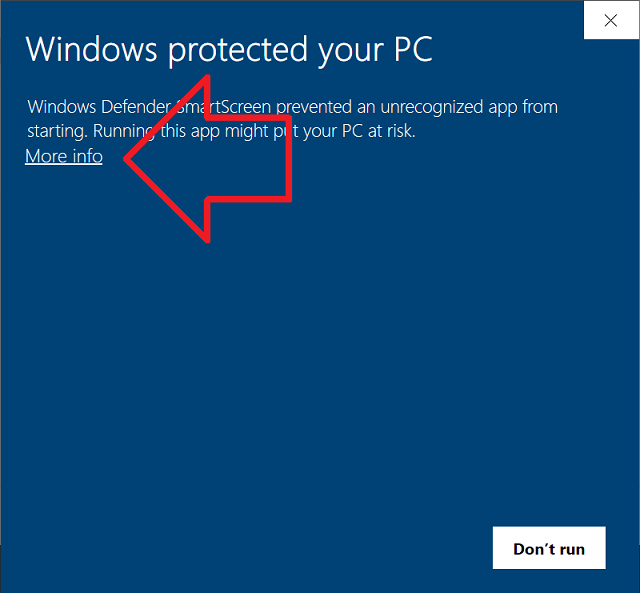
Screenshot shown in English — it reflects the real operating system interface, which stays in English regardless of page language.
6Wait for setup to finish
The installer silently installs RustDesk, applies the server/relay config, and adds the admin check-in task.
Expected server/relay: help.vserv.online
No manual RustDesk server settings should be needed.
7Open RustDesk
RustDesk should show an ID on the left. Send that ID to Kaven/support if needed.
RustDesk opens and is ready for remote support.